OBS Clock Overlay: Adding a Retro Pixel Clock to Your Stream
A glowing LED-matrix clock reads clearly in a stream corner without competing with your gameplay. Here's how to set it up in OBS.
An OBS clock overlay solves a few specific problems — letting viewers track how long a session has run, marking timestamps for clips, giving a subathon a visible tick. But a plain text timestamp in the corner of the frame usually looks like an afterthought; a glowing LED-matrix clock reads as an intentional part of the overlay instead.
Why pixel over flip or plain digits for this
The blocky, glowing look of the pixel clock matches the visual register of stream overlays, alerts, and chat boxes better than a plain sans-serif clock does — it reads as "part of the broadcast graphics" rather than "the OS clock leaking into the frame."
Setting it up in OBS
Add a Browser Source pointed at the pixel clock page, sized small (roughly 300×120 works well as a corner element), and position it in a spot that doesn't overlap your gameplay or facecam. Add OBS's Chroma Key filter on the source, keyed to the near-black background color, so it composites cleanly without a visible box around it.
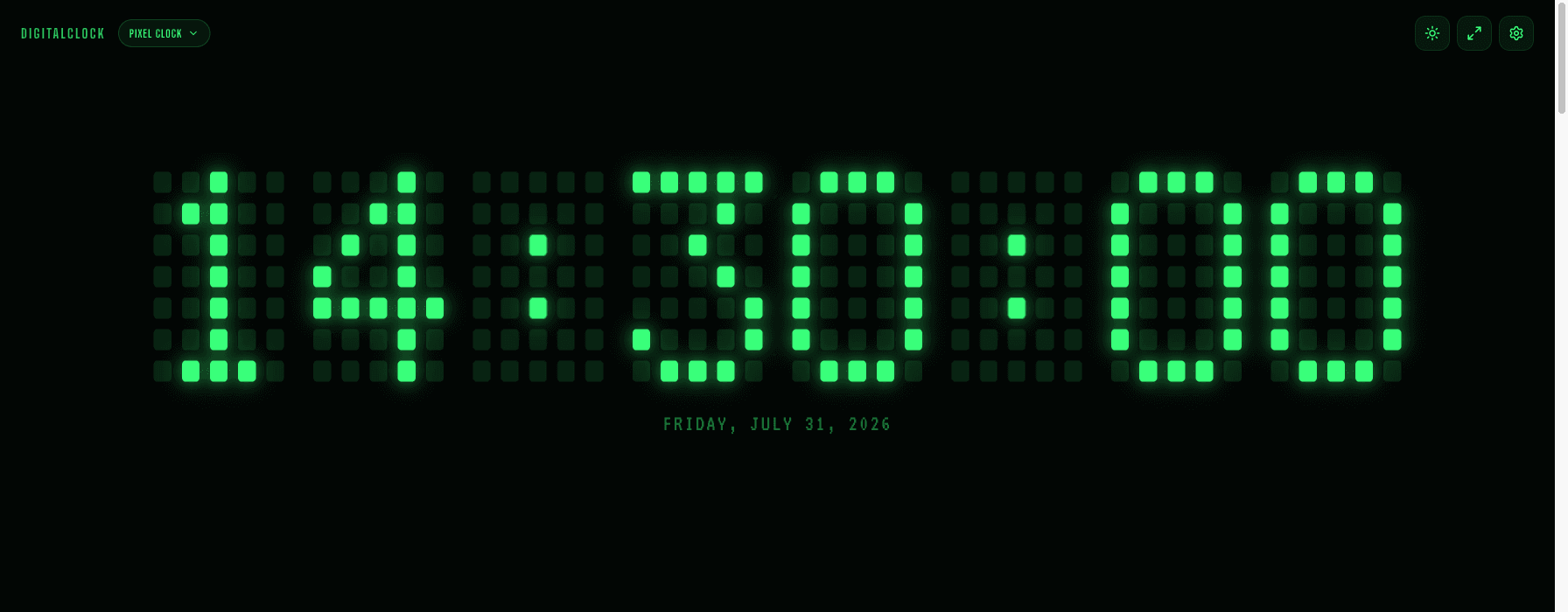
Color choice depends on your scene's palette
Pixel Green reads well against darker scenes and matches a classic terminal aesthetic. Pixel Amber sits well next to warm-toned alert boxes. Pixel Red works if your brand color or panel accents are already red — match it to what's already in your layout rather than picking on its own.
One thing to disable
Turn off Keep Screen On for this use case — your streaming PC shouldn't have its sleep behavior controlled by a browser source, and OBS keeps the source rendering regardless.