A Terminal-Style Pixel Clock for Your Coding Desk
If your desktop is already dark mode and monospace, a stock system clock widget looks out of place. This doesn't.
If your desktop is already dark-mode-everything — terminal, editor, browser dev tools, all black backgrounds and monospace text — the default OS clock widget stands out for the wrong reason. It's usually a plain sans-serif font in a rounded card, visually unrelated to everything else on screen.
Matching the aesthetic you already have
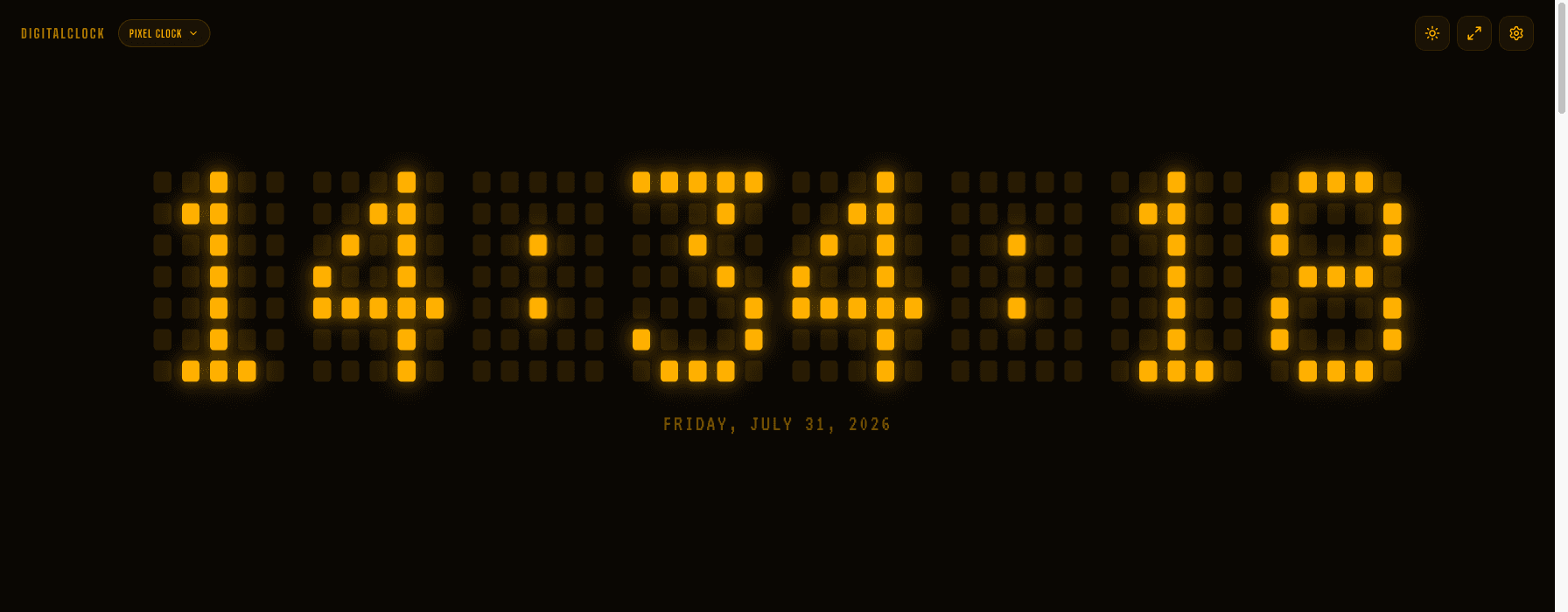
The pixel clock's LED-matrix digits read like the same visual family as a terminal prompt or an old CRT display — blocky, monospace-adjacent, glowing against black. It sits naturally next to a code editor instead of looking like a widget that wandered in from a different app.
Where to put it
A corner of an ultrawide monitor, a spare vertical monitor next to your main one, or a small always-on-top browser window if your setup only has one screen. Pixel Green is the closest match to a classic green-phosphor terminal if that's the look you're going for; Pixel Amber reads more like an old amber CRT monitor.
Late-night coding sessions
Turn on Keep Screen On if it's sitting on a secondary display you want to stay lit through a long session, and toggle seconds on if you actually want to track elapsed time on a task rather than just glance at the clock occasionally — some people like watching seconds tick during a focused debugging session, some find it distracting; it's one tap either way.
No account, no extension to install, no permissions to grant — it's a tab, same as anything else open in your browser.