Setting Up an Online Countdown Timer for Presentations and Livestreams
A plugin-free countdown for a stream overlay or a projector screen — how to size it as an OBS Browser Source, key out the background, and which settings to flip before you go live.
A slide with a small ticking number tucked in the corner reads like an afterthought. A full digital countdown — big enough to read from the back of a room or clean enough to sit as its own layer in a stream — reads like something the presenter actually set up on purpose. Here's how to configure the online Timer for either case.
Setting it up in OBS
Add a Browser Source pointed at the Timer page, sized to sit in a corner of your scene — something around 300×150 fits without crowding a webcam or a slide capture. Every LED color on this page renders on a genuinely pure black background (#000000, not just a dark gray), so keying out black with OBS's Chroma Key filter drops the background cleanly and leaves just the glowing digits floating over the rest of your scene.
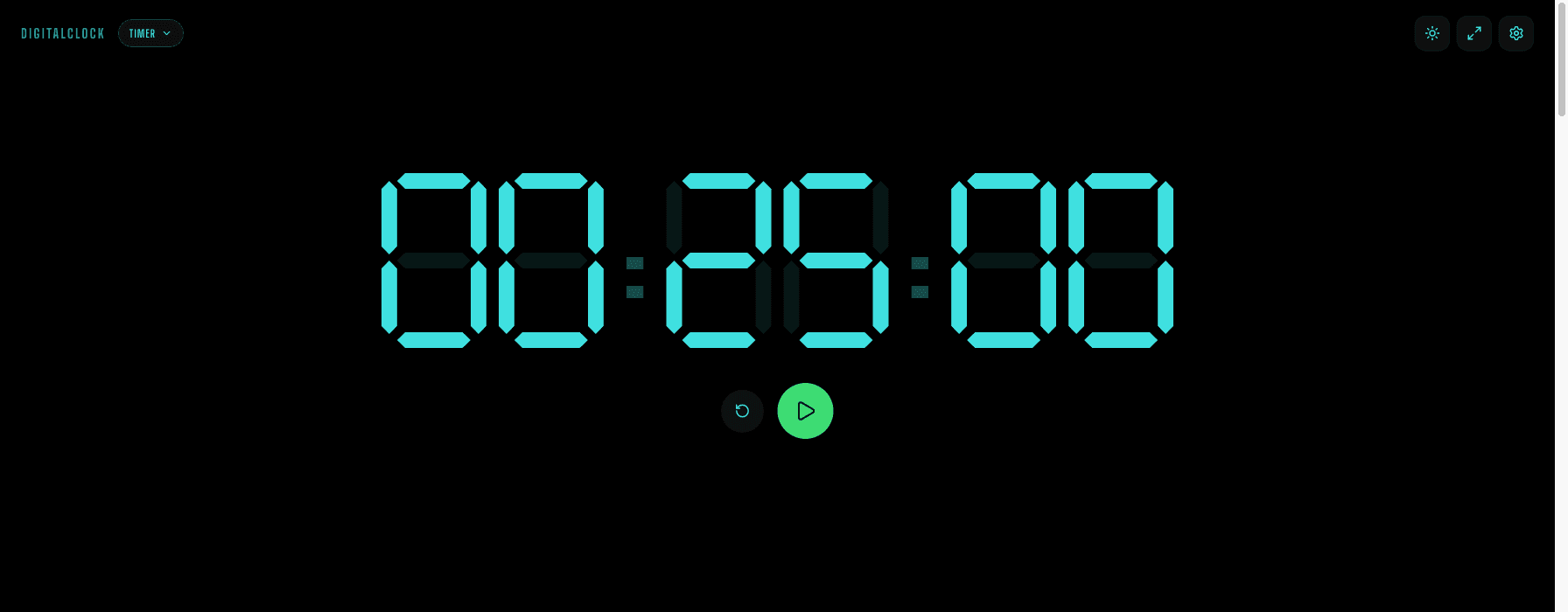
Set the duration before you go live
Enter hours, minutes, and seconds independently under Settings → Set Time while the countdown is paused, so it's sitting at the right starting number the moment you actually hit Start on stream or in the room.
Two settings worth changing for this use case
Turn Alarm Sound off in Settings — a sudden tone cutting through your stream or presentation audio is the last thing you want when the countdown hits zero, and an audience can already see the digits reach 00:00:00 without needing a sound cue on top of it. Skip Keep Screen On too: OBS keeps a Browser Source rendering regardless of whether the tab is technically active, so there's nothing here for it to protect against.
Picking a color that matches the rest of your layout
LED White or LED Cyan read as clean and neutral against most stream overlays or slide templates; LED Red or LED Amber fit better if your branding or panel accents already lean warm. All eight share the same pure-black background, so switching colors in Settings changes nothing about how the Chroma Key setup behaves.
Using it without OBS — for an in-person talk
For a live room instead of a stream, skip the Browser Source setup entirely: open Timer on whatever's connected to the projector, set the duration, and tap fullscreen. The countdown fills the screen the moment it's shared, readable from the back of the room without a clicker app or a dedicated presentation-timer plugin.